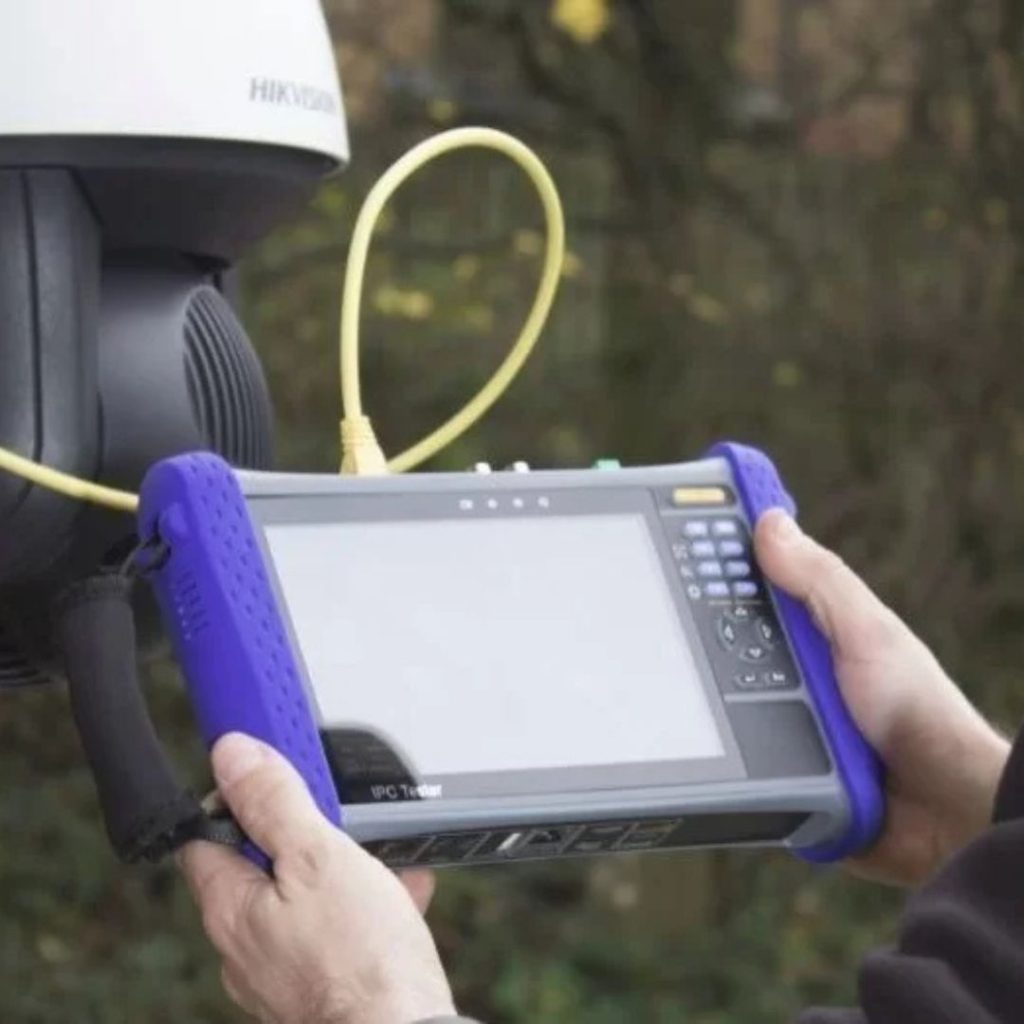
Service & Setting Wifi Camera

Setting Wifi Camera solutions provided by LockPro

Information

To set up a WiFi security camera, start by powering it on and connecting it to your network, either directly via Ethernet or through its own WiFi hotspot. Then, 
use the manufacturer’s app or a web interface to configure the camera’s WiFi settings, entering the correct network name and password. Finally, test the connection to ensure the camera is working properly. 

Here’s a more detailed breakdown:

1. Power and Initial Setup:

  • Connect the camera to a power source using the provided adapter. 
     
  • Ensure your smartphone or computer is connected to the same WiFi network you plan to connect the camera to. 
     
  • Some cameras may require a physical connection (like an Ethernet cable) during initial setup. 

2. Download and Install the App:

  • Download the camera’s dedicated mobile app from the app store (e.g., Google Play Store, Apple App Store). 
     
  • Follow the app’s instructions to create an account or log in. 

3. Connecting to WiFi:

  • Open the app and look for an option to “Add Device” or “Pair Camera”. 
     
  • Select the WiFi network your camera will connect to and enter the correct password. 
     
  • Some cameras might use a QR code scanning method for easier setup. 
  • 4. Configuring Settings:

    • After connecting, you can access the camera’s settings through the app or a web interface (depending on the camera). 
       
    • Adjust settings like video resolution, motion detection sensitivity, recording schedules, and privacy zones. 
       
    • You may also need to set up storage options (like an SD card or cloud storage). 

5. Testing and Finalizing:

  • Test the camera’s live feed to ensure it’s working correctly and that the image is clear.
  • Adjust the camera’s angle and position as needed.
  • Ensure the WiFi signal strength is strong at the camera’s location. 

6. Troubleshooting:

  • If you encounter issues, consult the camera’s manual or contact the manufacturer’s support for assistance. 
     
  • Common problems include incorrect WiFi passwords, weak signals, or compatibility issues. 
     
  • Some troubleshooting steps include restarting the camera and router or resetting the camera. 
Malaysia Smart Door Lock Installer
//
Product Support
Technical Team
//
Talk With Sales
Sales Team
How can we help?